Change SSH Port in CentOS - Linux
This is just a quick guide on how to change the SSH port in CentOS. While there are many ways to make sure your server is as secure as possible there are some…

 Karl Nyen
This is just a quick guide on how to change the SSH port in CentOS. While there are many ways to make sure your server is as secure as possible there are some basic steps and measures that you can take to cover your bases.
By default SSH runs over port 22, this is well known and because of this it can be used for malicious reasons to try and access a websites core files or your Linux Servers. As part of improving security to a site you should make sure that you change the default port to something else. Here we will change the port in Centos 6.5 ( although this is for all flavors of Linux ) via command line and also change the SSH port via Webmin.
Change The SSH Port Number in CentOS
First log in to your VPS or CentOS Server and browse to the following path.
/etc/ssh/
Once there you will see a file named SSHD_Config, this is the file we will need to edit. This file is the main config file for SSH. I use VI to edit text files on Linux, but you can use your tool of choice.
vi sshd_config
Locate the line that specifies the port. If your sshd_config file has not been altered the Port setting will be commented out with a # symbol (example below).
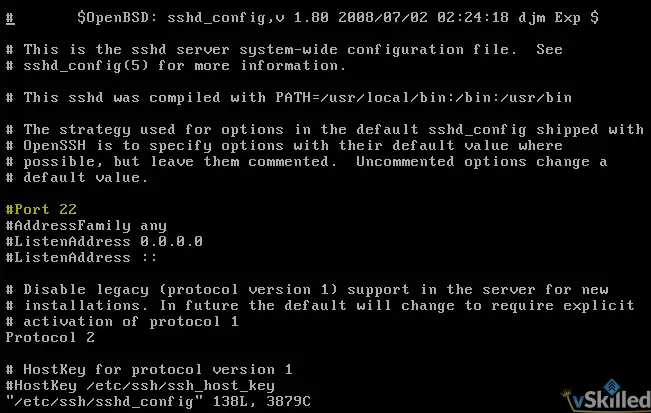
The # symbol tells the server to ignore anything after it on the same line, so we will need to remove that character and then change the number 22 to something else. Be sure you do not pick a port number that is in use by a different service.
Remove the # symbol and change the port number as desired:
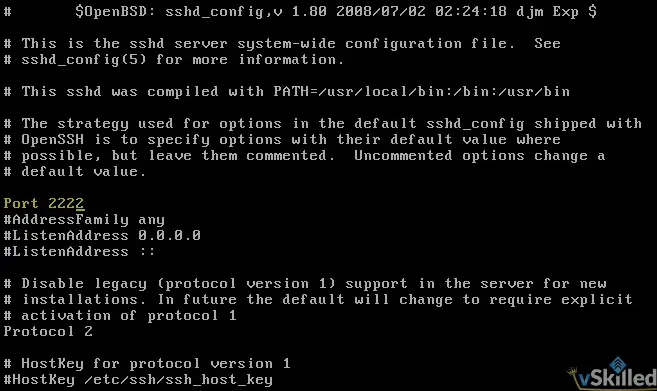
Save your changes and close the sshd_config file. If you are using a firewall also make sure you open this port and disable port 22.
To apply the changes simply restart the SSH service and your finished!
service restart sshd
Next time you want to SSH to your server just use the port you specified in your config file and away you go!
Writing about virtualization, home lab, cloud, storage and gaming on vSkilled, started in 2014.
Cover photo: Mohammad Rahmani on Unsplash